
Make Your Podcast or Video Sound Better with iZotope RX 12 Breath Control!
· Audio · Post-production & software · 6:25
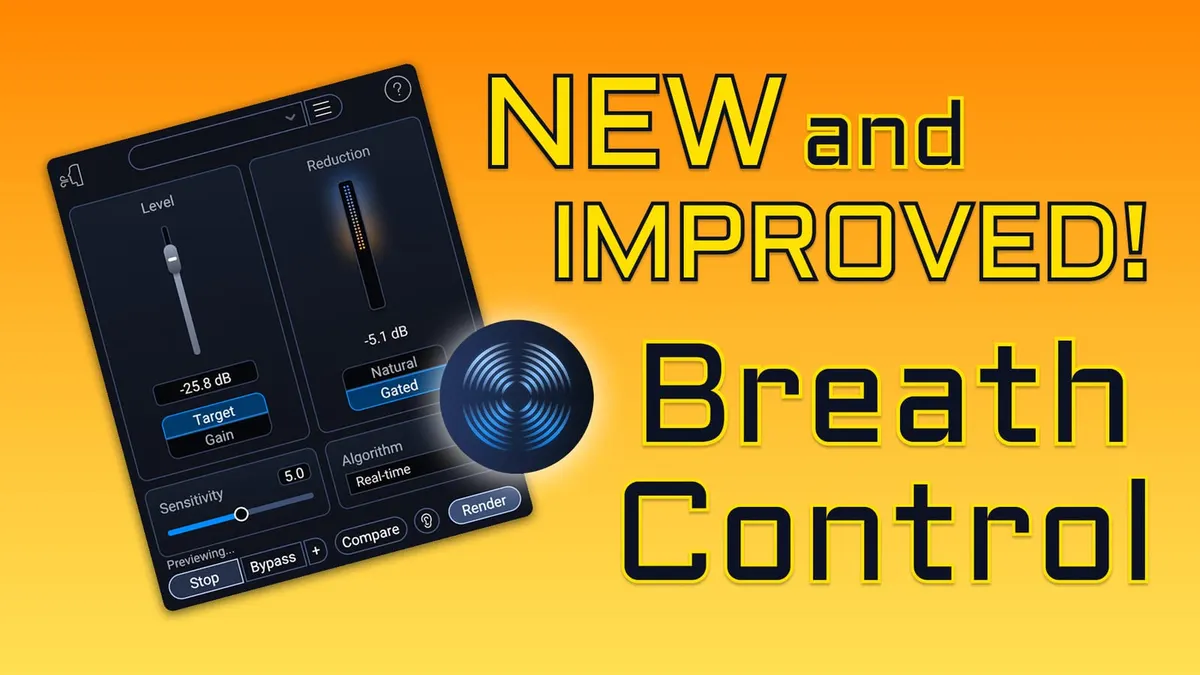
In this week’s episode we try out the new version of iZotope RX’s Breath Control plugin. It’s been fully rebuilt for RX 12 with new and improved neural nets. That means more accurate breath reduction for your video and podcast audio recordings. In our experience, previous versions of Breath Control haven’t been the most reliable tool in the suite; how does this new version measure up? Let’s take a closer look and listen!
You can dive deeper into how Breath Control works and what each set of controls do on this documentation page. You can find in-depth pages for each of the other individual processing modules there as well.
Gear used or mentioned
The links below are Amazon, B&H Photo, Sweetwater, or other affiliate links. As an affiliate, I earn from qualifying purchases.
- Earthworks Ethos — XLR Broadcasting Microphone
- Sound Devices MixPre-3 II — 32-bit float audio recorder
Read the transcript
iZotope has just released RX version 12 and here we’re going to demonstrate specifically the breath control plugin and this is a plugin that in the previous versions of iZotope RX frankly have not trusted because it does things that it doesn’t I don’t want it to do. For example, it will catch things that are not breaths and reduce those as well. So that’s really just not something that’s a great experience when you have a plugin that’s supposed to do a job and it kind of overdoes its job no matter what settings you set it on. So for example, I could I couldn’t just turn it loose on an entire dialogue clip and expect to get the results that didn’t affect the dialogue and the breaths. So it would take care of the breaths at least some of them. Some of it would just miss the breaths all together and but it would reduce other things just kind of a mess.
So the thing that I thought, well, what if I just maybe select a section like this? I know there’s a breath there. Click it to render but it was still sometimes getting some of the dialogue stuff and then I’m like, okay, well, what if I just highlight the breath and then at that point it’s like, well, what’s the point of the the plugin at that point? You could just do automation or or reduce the gain for that one section that you have highlighted and it’s just not worth the effort at that point and it’s just becomes a really tedious process. So let’s take a look at the new RX 12 breath control and see if it has improved.
Now, what I want to do first is I want to show you what the RX 11, the previous generation algorithm was doing. This is the classic in RX 12. So this is RX 11’s algorithm and I’m going to select it to just play the breaths that it detects or playback the things that it thinks are breaths so that we can see what the algorithm is doing.
Okay, as you can see it’s catching stuff I do not want it to catch. It caught several consonants in there, uh some portions of words, just not a great experience. So, what that means is if I was using RX 11 breath control, it would be reducing things that are not breaths. It got all the breaths in this case, but also I found it and I didn’t have an example of it here, but in some cases it would only catch half a breath and leave the other part of the breath unaffected, which sounded even worse than than not doing anything to the breath.
So, it was just something I couldn’t rely on. Now, let’s go ahead and switch this to the real-time algorithm. There are three algorithms here. Real-time is the new RX 12 real-time algorithm. It is less processor intensive, so you should be able to run this one in real time if you needed to. There’s also an offline, which should do a better job at cleanly detecting the breaths and reducing them, but it’s probably going to be hard to do it to play back without the very most top-spec type of computer.
So much better. All of those were breaths. So, it is doing a much better job already. So, let’s talk about the other settings here and what I would use to set to manage the breaths here in this section.
On the level setting, first of all, this is how much it’s going to the breath once it finds it, and you have a couple different options. You have target mode and you have gain mode. So, if I set it to gain mode, this is how much I want it once it finds a breath, how much to reduce that breath. All of them universally, it’ll reduce by 9 dB in this case. That could be a totally valid approach.
Another approach is when you find a breath, regardless of what level it’s at, reduce it to this level. So, in this case, minus 55 dB. So, it’s going to take all of the breaths it finds and move them down so that they’re around minus 55 dB. So, I usually use the target mode and based on the loudness at which I’ve normalized this audio, I would probably target about minus 50, maybe minus 55.
The reduction setting here, you have two options, natural and gated. What natural does is it retains any ambient sound, but it reduces the breath. And then if you go to gated mode, it will reduce both the breaths and the ambient sound. So, normally I’m going to leave this at natural because I don’t want it to sound like it’s very processed.
The sensitivity setting, of course, is telling the algorithm how aggressive to be as identifying something as a breath. If you’re finding that the algorithm isn’t picking up all of the breaths, you can push this up to a higher setting. Or if it’s detecting too many things as breaths, you can back it off a little bit, but I generally find that five works really, really nicely.
Fantastic job. So, iZotope has done, in my mind, a very good job of improving this. The machine learning algorithms that it’s using today in version RX 12 are so much better than previous generations and something now I feel like I could actually trust to turn it loose on a dialogue clip and come back with some great results. The breath control plugin can be found in both the standard and the advanced versions of RX 12. So, get out there and make some great sound and we’ll talk to you again soon.