
Set Up Auto-Ducking on the Mackie DLZ - Simplify Your Audio Workflow for Podcasts and Livestreams!
· Audio · Post-production & software · 2:26
Our lighting and sound courses can be found here!
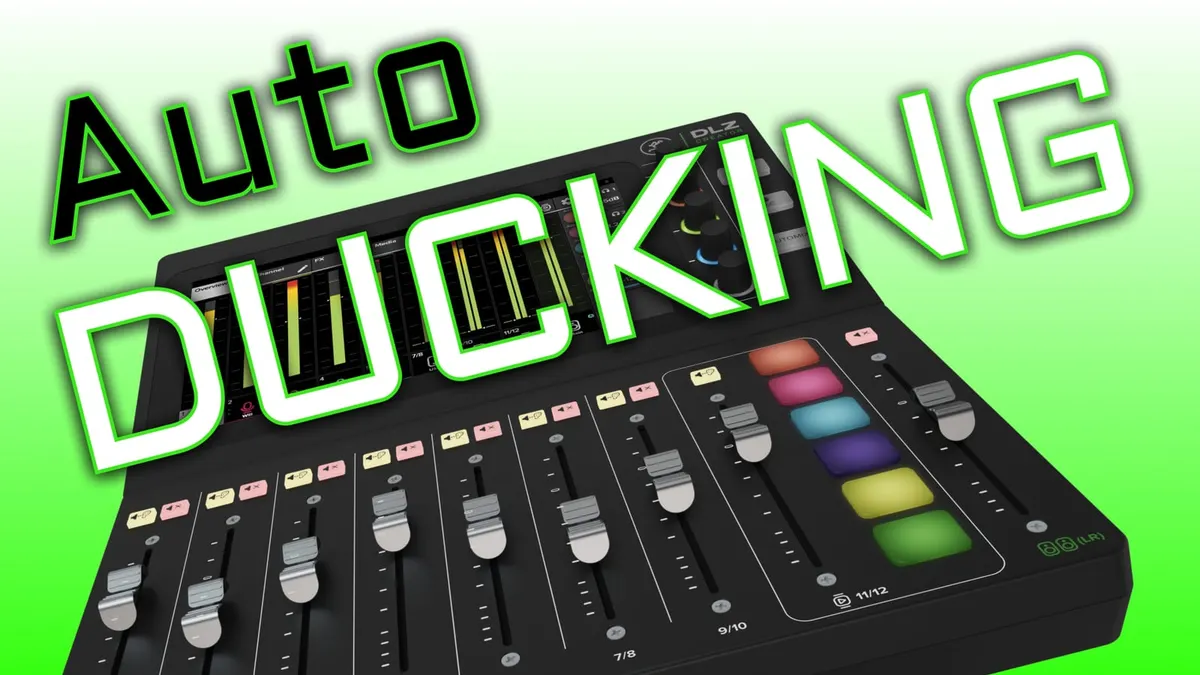
In this episode, we walk you through how to simplify your audio mixing workflow by using the auto-ducking feature on the Mackie DLZ mixer/recorder consoles. Auto-ducking is a great way to refine and upgrade your dialogue and music mixes in live streams, podcasts, and more!
Gear used or mentioned
The links below are Amazon, B&H Photo, Sweetwater, or other affiliate links. As an affiliate, I earn from qualifying purchases.
- Mackie DLZ Creator XS — adaptive digital mixer (the little one) — B&H, Sweetwater, Amazon
- Mackie DLZ Creator — adaptive digital mixer (the big one) — B&H, Sweetwater, Amazon
Read the transcript
Behind the scenes setting up for a livestream: here’s how to set up audio ducking on the Mackie DLZ Creator and DLZ Creator XS. Ducking automatically fades background music down when you’re talking on channel one, then fades it back up when you stop.
To set it up, go into an empty pad and switch it to Control mode, then choose the pad behavior: Toggle (press once to turn the control on, press again to turn it off) or Hold (must hold the pad the entire time the control is active). For ducking, Toggle makes the most sense. Select “ducking” as the control mode and give the pad a name (like “Duck”) so it’s easy to identify later.
With ducking off, talking over music does nothing to the music level. Turn it on, and the music now fades down automatically whenever you talk on channel one specifically, then fades back up a few seconds after you stop talking. That’s the whole setup. Get out there, make some great streams and podcasts, and we’ll talk to you again soon.