
Sound for Video Session — Myna Universal Fit IEMs, MixPre Setup, & Q&A
· Audio · Headphones & monitors · 1:09:41
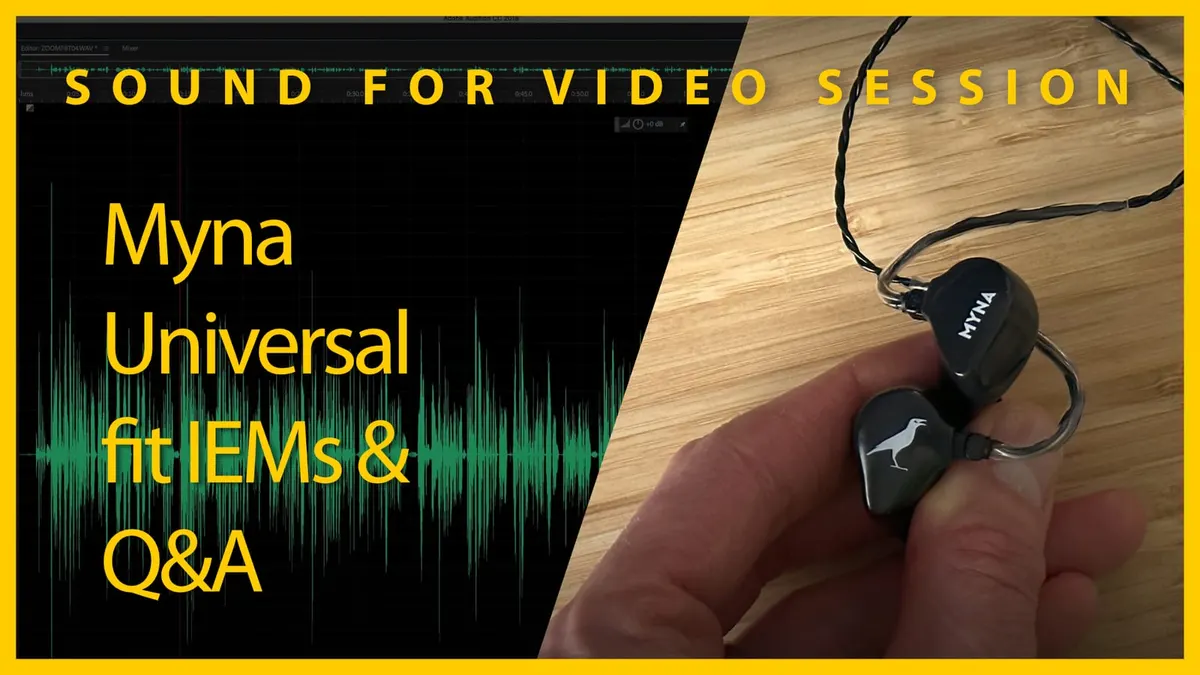
In this week’s session, we’ll briefly talk about my experience with the Myna universal fit in-ear monitors, walk through how I setup my MixPre for various situations, and then we answer your sound for video questions.
Gear I often use or that we mentioned in this episode. The links below are Amazon.com, B&H Photo, Sweetwater, DVE Store, Waves, or other affiliate links. As an affiliate, I earn from qualifying purchases:
Gear used or mentioned
The links below are Amazon, B&H Photo, Sweetwater, or other affiliate links. As an affiliate, I earn from qualifying purchases.
- Myna universal fit in-ear monitors — Trew Audio
- Earthworks ETHOS microphone — B&H, Sweetwater
- SHURE KSM8 dynamic microphone — Sweetwater, B&H, Amazon
Read the transcript
[Music] thank you [Music] [Music] foreign [Music] [Music] [Music] foreign [Music] [Music] [Music] [Music] [Music] foreign [Music] for video session today is the 11th of
December 2022. it’s great to have you here hope everybody in the northern hemisphere is staying warm for those in the southern I hope you’re enjoying spring late spring early summer there let’s jump on over to our agenda and talk about or cover what we’re going to talk about here I first want to make an announcement for next week I have had the pleasure of getting in touch with Michael Patterson who is the staff historian over at Shore the same company that makes for example the Shure sm7b and the Shure sm58 so on and so forth so he’ll be joining us next week on this live stream to talk with us a little bit about some of the history of specifically the Shure sm-7 and all of its iterations and kind of where it came from and and how that all came about so
I’m very excited for that I hope that’ll be of interest to you as well so be sure to join us next week for that one today we’re going to talk a little bit about the minor Universal fit in-ear monitors we previously talked about the custom fit in-ear monitors but these are more like these are basically off the shelf in-ear monitors and there are a different set of considerations that come with us so I want to cover just a little bit of my experience with those we will then go over to our mix pre we have a mix pre 3 2 set up here today and we will walk talk walk through and talk about the setup process on that and then we have some questions that were submitted ahead of time we’ll go to those and then we’ll come over to the chat and cover any questions that folks have there or any topics that people want to cover so with that let’s go ahead and take a look at the minor in-ear monitors down if you’d switch to the overhead there we go all right so it was back in July in fact that we talked about the minor custom in-ear monitors and that’s what these are right here you can see these are actually substantially larger than the universal fit so there’s a comparison there for you to see them in-ear monitors in-ear monitors have been up until this point kind of a challenge for me and I think they’re a challenge for people in a variety of different ways but there are some distinct advantages to in-ear monitors especially if you’re going to be listening to sound for a long period of time monitoring sound for a long period of time and the first one is that a lot of say for example production sound mixers are used to the sound signature the voicing if you will of certain headphones so Sony MDR 7506s are very very common out there a lot of people are used to them in fact Andrew schep’s legendary mixer does when he’s in headphones he’s using
Sony mdr7506 is just stock straight off the shelf 79 headphones that’s what he uses and he’s won lots of Grammys so um and then a lot of production sound mixers they have their preferences a lot of folks are using the in the past at least have used the Sony mdr7506s I use my favorites are the buyer dynamic dt770 pros and that’s the thing that’s unique about the miners is that they are voiced specifically to mimic one of those you choose which one in our case they actually gave us um and these these were sent to us free of charge just for full disclosure from
Mina the ones that they sent me are voiced like the buyer dynamic dt770 pros and I can say that making the move or transitioning from those over ear headphones to these and the custom in-ear monitors here was very seamless the the sound signature is very very similar is it exact no there’s a tiny difference but it’s really really close and so it makes it easy to make that transition and we covered some of those the advantages of using in-ears you have a little bit more isolation um so that’s really helpful just to make sure that you know what’s coming in you don’t have to push volume levels that are quite as loud if you get a good fit on your in-ear monitors and of course the Customs are the perfect way to do that but then the uh the office shelf ones are less expensive so these come in at 350 instead of the 500 that you would pay for the customs and my challenge with off the shelf in-ear monitors has always been the fit and getting them to fit right and so for example I have I had a set of sure uh the model numbers I think 215 I don’t remember the exact they’re fairly for reference monitors are less expensive they’re somewhere around 100 as I recall I have a set of West tones that are more sophisticated to have five drivers and by drivers those are essentially miniature speakers inside each of the ear the um you know the the monitors and those are closer to 500 and I still wasn’t thrilled with those um these are less expensive than that these are also five driver models so they have five different drivers to represent the overall audio spectrum and the biggest thing though is getting them to fit right and the important thing is to fill to comfortably fill the ear canal to provide that isolation so you can actually get some of that base response in particular get the isolation in general but get the bass response in particular and so they came with a couple things so they have the silicone ear tips these are you see these on a lot of earbuds as well but these they come in three different sizes with the monitors themselves but then they also gave um they’re also using these here which are some foam ear tips and this is going to come down to yours your particular ears and the size of your ear canals and so on and so forth and what works best for you I actually found these work better these are from these are called comply foam and so what you’ll notice here is that when I squish them down in fact when you fit them in your ear you’re supposed to do this you kind of Squish them down and then over just a period of a few seconds they fill back out and so they are to fill your ear canal and they come in different size three different sizes here in this kit as well but what I found was that the I was able to get a good fit with these as well and so I was able to get very very similar sound to the customs with these they’re not quite as comfortable for long-term listening as the Customs were for my ears but for a lot less money or substantially less money you could get a very good in-ear monitoring experience if you are doing some sort of professional work and need to be monitoring for long periods of time so why don’t we pause there let’s go back over to the main camera into the chat and see if we have any questions no questions okay all right if you do have any questions about the miners do let me know um
I would say that the miners are the the best in-ear monitors that I’ve used I haven’t used a ton of them I told you about the others that I’ve used I had the West tones and I’ve had the um I think the West tones are those a lot of times are used by musicians on stage so that’s one thing and [Music] um these I seem to get these for reference like actual reference monitoring if I’m really trying to tell what’s going on these seem to do a really nice job at that so those are the miners if you do have any questions go ahead and let us know in the chat here and we’ll come back to those in a little bit I’m going to go ahead and set those aside for now here’s an interesting comment about the phone interesting comment about the foam uh Christopher says problem with foam ear tips is they don’t last long once exposed to air they need to be replaced after only a few days usage to get a good seal necessary for base response thanks for that Christopher good to know about that so there are definitely some trade-offs um I’ve I have always struggled to get a good fit with silicone ear so the silicone tip so in any case um you got to find what works best for you is kind of the short version all right let me get the mix pre into place here I’m just gonna take that here and I’m going to get that refocus so we can come and take a look at that just reach up here and I think does that look in Focus
Danny uh oh wait a minute we’re going to go to the mix pre here okay so before we do that let me just um there are a couple things I want to run through before we talk about how to set up your mix pre and I think this is critical to understand some Basics before we do it because a lot of people have questions that get lost in the all of the options that are available the different modes that are available um so on and so forth can we go back for a minute we have more comments oh we do have some more comments on the minus let’s cover those first okay audio buff
I’ve had the black foam ear tips come off in my ears ooh no fun when the misses had to use needle nose pliers in the middle of it be very careful very very careful oh that’s not so good are these flat frequency items um iems excuse me iems in-ear monitors I would not say flat frequency response they are made to mimic the voicing of other My of other headphones that are very common that most production sound mixers are familiar with namely the two models that I’ve heard that they have options for currently are the Sony mdr7506 which is not a flat frequency response headphone and also the biodynamic dt770 pros which also I would not say are perfectly flat no no headphones are perfectly flat in fact that’s an interesting topic
I don’t think they have to be perfectly flat to be effective for you to monitor
I think what’s more important with headphones is something that doesn’t have any massive deviations from reality but that you’re also used to that’s that you’ve that you’ve listened to them enough that you that your brain has sort of act acclimated to I think and um that I think is probably the most important thing so no they’re not flat I would not call them flat good question okay cool let’s go to back to the the chain so what is a mixer and what does it do
I think that’s the first thing that a lot of people get confused about when it comes to the mix pre is that they’re expecting a Sim they’re expecting it to work a certain way and out of the box it may or may not work in the way that they’re expecting it to so what a mixer is if you think of a live just think of a live show of some sort whether it’s a panel discussion or a music performance there’s a mixing board and the purpose of the mixing board is to take all the microphone inputs and to be able to mix them together or to mute certain channels if you need to do that so for example you might have um a show where you have three guests that are up on stage talking and then you have a second portion of the show where one of the guests leaves and another guest comes out or maybe you move to two guests you may have to switch to a different microphone for the new guests that are coming out so you might want to mute the you know the one that the previous guest was on and then you may need to adjust the levels too so you have those um you have faders you have those linear faders or people sometimes call them sliders that technically they’re faders so if somebody’s one if one person’s voice is louder than the others you might pull one person’s voice down just a touch the louder person’s Voice or you might boost up the quieter person’s voice to level them out a little bit to make the listening experience great for the audience so those are some some of the basics that it does it also allows you for example for the people on stage they need to be able to hear themselves too to make sure you know to get a sense for how things are being projected out to the audience and so typically they’re going to need some monitors too and that you know traditionally that has been what are called stage wedges or stage monitors so there’s speakers up on the front of the stage that actually play the sound back to the people that are performing or that are being interviewed or whatever so that they can hear everything as well um more more recently I think most musicians now are using in-ear monitors so they’re having they have a wireless pack and in your monitors and what the mixing board allows them to do is to customize exactly what’s sent to those in-ear monitors that they’re listening to or those stage monitors that they’re listening to so you can do a different mix for that as well that’s what a mixer does so keep in mind the mix pre has it in its name it is a mixer it’s not just a recorder so it does some of those things as well so you do have some of that ability to change the mix a little bit now the mix pre also has some additional capabilities as a recorder it can record just the mix or it can also record the isolated inputs channel so if you have two microphones connected to your mix pre and say for example for your particular purposes whatever you’re doing maybe it’s a it maybe it’s a podcast you might want the stereo mix of the two microphones that you actually made and the you know that take into account the fader adjustments that you’ve made so if one person was louder than the other you may have turned the louder person down on the fader a little bit on their fader a little bit and then in post you might say well yeah the mix is great I’ll just use the mix that’s perfect that’s you know if that works out that’s the ideal then you don’t have to do as much post work however on the other hand you may also want to record the isolated channels so you can do a more careful mix in post as well so this the mixed pre gives you that opportunity to do that but you have to know that ahead of time so you can set up your mix pre to do that if that’s what you need okay then you also have the ability to control what the knobs on the front of the mix pre does and we’ll talk about that in just a minute so first of all is again deciding what specifically you want to be recorded do you want the mix do you want just the isolated channels do you want both that’s important to decide ahead of time so you know how to configure things and get it set up so once you’ve figured that out then it’s time to choose your mode so why don’t we switch over to the mix pre here and we’ll take a look so here we have a mixed pre 3 2 just move that over just a touch there
I’m actually going to switch our sound over to this so I have another microphone here I have a sure sm7b and I’m going to mute the mic that I’ve been talking on okay can you hear me on the shore sm7b now go ahead and give us a thumbs up in the chat if this is coming through okay I just want to make sure that we have that all routed correctly very dry it’s not it’s a different sound it most definitely is okay um all right so uh let me just let’s go in and let’s look at the mode first so if I wanted to for example well actually let me let me take a step back so if I just wanted these knobs on the front here say I have two microphones that I’m recording a podcast and I just want to record the two people and I want these knobs to be able to control my gain level the input amplification level then I would want to go to basic mode and all I need is a stereo mix I don’t need isolated channels that’s what basic mode does so if that’s all I need then basic mode is it if on the other hand I want to record just the isolated channels just microphone one to its own track microphone two to its own separate track and then microphone three if we are using it in that case to its own separate track then I need to go to advanced mode and I can choose to record just the isolated channels or I can read I can choose to record both the mix and the isolated channels okay do we have any questions in the chat so far that we need to come to uh not about this but for later okay we do have some questions for later okay cool we’ll come to those in just a little bit all right so we do have a question now okay let’s take a look at that sure okay okay I’m back on this microphone now
Christopher says what is the routing from the mix pre to the stream left right into one of the audio ends on the atem and the answer yes is yes Christopher that’s exactly right so the output on the mix pre into a line input on the A10 mini or one of the the two 3.5 millimeter inputs set to line level what I have found is that when I calibrated the levels between the two to get the levels matched or calibrated between the mix pre and the atem I actually have to increase the output gain on the mix Breeze output by 3 DB once I’ve done that then it’s uh then it’s perfectly calibrated so hopefully that helps okay all right now I’m going to switch back over to the mix pre sound okay now we’re back on the mix pre and
I’m talking into the Shure sm7b okay so let’s go take a look at that so if I come into the menu here and I go over to the system menu that’s right here this is where I get to choose my mode and right now we are in advanced mode actually you know what I’m going to do I’m going to switch back to my microphone because I’m going to be switching things here and I don’t want you to the sound to cut out so give me just a second okay now I’m back on my regular microphone you can hear me okay all right um so let me just hop into the mode menu here we have three options we have basic we have advanced and we have custom again if I go to basic mode um this is going to change over to basic mode that’s why I switched over to my microphone by the way so that that wouldn’t happen in your ear there now in basic mode what is interesting is that I can I can still get levels meters here if I switch it and I can switch my meter view incidentally just by tapping on the meters like that there are three different meter views so what I can do is I can and to set up my microphones this knob now becomes my gain knob and you can see that doesn’t make any sense let’s come back in here come back in here okay so for this mic I typically need somewhere around 65 DBS sure sm7b don’t need phantom power the low cut is just in basic mode you just either turn it on or off here’s with it off um actually you’re not hearing me right now but we’ll come back to that in just a minute but that’s that’s the main idea if I want to adjust my gain here I just literally grab this knob and I can turn it and that’s my input gain level and I can set that wherever I need to so if I want a really simple setup that’s exactly how we do it all right now if I wanted to again if I want the the ability to record I’m going to come back into the menus to the system menu and back to the mode if I want to record those isolated channels as well I need to pop back over to advanced mode now you’ll notice here out here notice we’re not getting any levels I’m talking still talking I’m still right next to that microphone you’re not hearing it right now but this now becomes a fader and what’s the difference between a fader and a gain knob that’s the question so let’s let’s switch back over to the main camera here for just a second so the difference between gain and a fader is that a fader controls the mix gain controls how much amplification is being applied to the microphone in that microphone signal so how much amplification are we applying to that microphone that’s what you typically do first and then once you have that set then to level out all of the different voices coming into the different microphones you typically use those faders to even those out a little bit hopefully that makes sense so that’s the distinction now when I’m in advanced mode we’ll go back to the overhead shot here in advanced mode these knobs become faders instead and if I want to set the gain for this this particular microphone
I actually have to press down on that knob and I set the gain here in the menu you can see here if I bump it up to 65
DB on my particular voice with the Shure sm7b in close proximity usually about 65 DB is about right for me and I’m peaking somewhere around around -12 maybe just a little bit hotter so that’s how you set the gain now you’ll notice here this again remember is the fader in advanced mode watch what happens when I turn the fader down I’m still getting levels so if I’m recording that isolated microphone input I’m still going to be recording that but the mix this the fader just defines how much of that microphone gets sent to the mix is how I typically like to think of it okay so if I set that back to zero it’s going to send to the mix the exact same levels that are on the isolated
Channel so that’s all so that’s the difference between advanced mode and basic mode that’s the biggest difference that that this is a this is a fader in advanced mode it’s a gain knob in basic mode and then also in advanced mode I’m also record I can also record the individual channels in addition to the stereo mix now in advanced mode I don’t have to record the stereo mix altogether and in fact you can tell that I’m not right now because the left and right are not red they’re gray the only thing that’s going to be recorded right now the only thing that’s armed to be recorded right now is input number one which is why it’s red what if I wanted to record the stereo mix as well I’d come into the menu
I would go to is it outputs no sorry it is not outputs it is the record menu and I can choose to record left and right and I have a few different options there let’s not get into all the details right now but let’s just do left and right now you’ll notice when I come back out here the left and right are red that means that they will be recorded when I start a recording so now I’m recording into one file I’m recording the Left Channel on one track the right channel on the next track and input number one on the third track so when I open that file on my computer and my digital audio workstation I will have three tracks the left stereo mix is the first track the right stereo makes second track and the third track is the isolated input for microphone input number one so that’s how that works now again if I don’t want to record that stereo mix actually we’re recording right now so we have to stop our recording first if we come back in here then I go into the record menu
I don’t have to record that left and right mix if I don’t want it I can just turn it off altogether if I really just want the isolated channels that’s how I do it now it is important too when you’re setting up your microphones make sure the microphones that you want to record are armed if they’re not armed they will not record and the reason for that is that’s a way to provide the mixer more flexibility again that’s a mixer type feature that allows you to Define exactly what gets recorded and what doesn’t so for example there may be um
I guess I’m trying to think of an example of where you wouldn’t but if you wanted some One microphone to be included in the mix but not have its own isolated Channel recording you could disarm it even though that microphone input is enabled you know you’re still getting level on it you’re just not going to record it to its own channel but it will be included as part of the mix so whatever circumstances you can think of where you may need to do that maybe a TalkBack microphone or something like that is a potential um situation there that’s even even that probably not what the mixed spree is not
I mean it could be but in any case let me move on from there now there’s also this custom mode let’s talk talk about that as well if I go to the Third menu page into system again into mode there’s also custom mode and custom mode allows you to do kind of a different combinations of things so for example if I’m recording and I do want to record isolated channels in addition to the mix or just isolated channels but I want these knobs to be gain knobs and not faders well I can do that in custom mode and the way I do that is I come back out to the system and you have to go into custom setup and that’s where I can change things here so for example if I want to record the isolated channels then I wanted the channel setting to be set to Advanced but I want to use these knobs for the gain knobs and I leave gain at basic and then I can do that so they’re not going to get the both The Best of Both
Worlds if you will so now you can see let’s go back into this channel here we need to bump up the gain some oh wait that’s that is pan excuse me we’re going to leave that pan Center um okay yeah if I come back out then this is gain that’s right I’m using the the basic mode here for gain I’m using custom mode with gain set to basic so now I can record the isolated channels and the mix if I choose to do that right now I don’t have that selected to record but I can record the isolated channels but this knob is my gain knob now and I can set that to wherever I need to set it just to quickly set the gain without having to pop into any menus and again somewhere right around there is probably where I’d be so that’s the first thing choosing your mode and setting that up so I’m going to go ahead and go back to advanced mode that’s typically the mode that I use here for most of my purposes so let’s pop over to advanced mode okay I think we’re good there okay let’s pause there and see do we have any questions Danny okay let’s go back over to the questions and take a look at those
I’m just going to take a look through the chat here see what we’ve got going uh Vincent many headphones follow the harman curve as do IEM also
I don’t know how to pronounce deconi dicone makes many in their in-ear monitor Bud sizes so the perfect fit for all tiak is doing great Curtis that’s the uh the tape recorder thanks so much Vincent thanks for the Super Chat and thanks for some uh some of your insights there very much appreciate those Shoji question on the mix 362 can you talk a bit about the
USB one through eight outputs under the menu selection what is USB 1 through 8 used for yes we will come to that in just a little bit here Shoji great question hmm okay from Nathan advanced mode is a lot like a mixing console used for front of house at concerts and events uh yes I would say that it’s closer to that yes it doesn’t necessarily have as complex uh or sophisticated routing capabilities necessarily but yes it I would think of it in those terms coming from some live music event mixing I feel pretty at home in the advanced mode completely agree and that’s typically why I’m there I want I usually want that additional control of what’s getting recorded what’s not um if I’m working on a mix I have the faders the knobs that act as faders which is perfect um usually I’ve got my game dialed in well beforehand so I don’t have to adjust the gain a whole lot so it’s not as if I have to jump in those menus a whole lot but yeah that’s typically the approach you take for a front of house mixer
Mike thanks for a useful tutorial as a one-man operator for videoing a critical live event I use the mix straight into the camera but record each Channel separately in case I need to do a post remix and I completely agree too if I’m doing a live show and I’m going to be producing it as a video on demand type of thing then yeah I’ll do both record and mix so that’s another situation where the mix is important and the isolated channels are important both of them all right for Film Production which uh can for Film Production can which type of Knob setting is better will the knob be gain or fader for Eng style knob is fader might be useful for film I am confused again you have to choose what’s important to you and what you’re doing and
I would say for for single operator someone that’s doing camera lighting interview say for a documentary or corporate video interviewing uh they are craft Services they are doing everything then maybe basic mode or custom mode where the knobs are the gain might be the better choice um but if you are a dedicated mixer you’re the dedicated person operating the mix pre for Film
Production I would typically use advanced mode and use the gain or use the knob as a fader I would do my best to provide a quality mix for the post-production team but also the isolated channels if they need those as well so that’s how I would approach it but there’s no right answer the right answer is what you decide and what you need so the mix pre gives you the flexibility to do it either way again no right answer you can still make great recordings either way you choose to do it you gotta experiment you got to practice is there an app to perform the menu changes you are making on the mix pre-menus from DJ where there is an app called wingman it has very limited capabilities in terms of it doesn’t no it doesn’t cover the whole menu so you cannot control the entire mix pre from an app it does allow you to do a few things mostly metadata entry which is a little bit
I would say a little bit clumsy with just the mix pre but you can connect a keyboard you can connect um but I think a mobile app is probably the best for that so the wingman app is helpful for entering metadata and arming and disarming channels starting and stopping recordings but for all the menu things that we’re talking about here no you still need to get into the menus on the mix pre itself so good question uh question in your actual work do you set the gain mode to custom basic if so why I usually set it to Advanced and I set the gain in the menu ahead of time and then I use the faders to adjust the levels in the mix is typically what I’m doing the way why do I do that that way because that’s just how I work and it works well for me so if I’m not worried if I’m not going to do a mix if I’m just getting isolated channels I might go to basic mode or probably actually custom mode with the basic gain setting is what I would typically do
I’m almost always going to I’m so I guess there there actually is the answer for me I don’t spend any time in basic mode I’m either in custom or Advanced one of those two and that’s a personal thing again subjective I’m not saying that’s the right way to do it that everyone has to do it that way I will say this though my sense is that for the mix pre what sound devices was trying to achieve was to to get something that was super flexible so for people that need something that’s really simple and really basic then that’s what basic mode is for so say a podcaster that just doesn’t know all that much about recording sound and doesn’t want to doesn’t want to learn is very focused on
I should be careful how I say that not that they don’t want to learn but they’re focused on the other things the content creation for their podcast and they don’t have the you know really the luxury of they don’t want to share their attention too much with their recorder um basic mode maybe the exact right option in fact there’s no there’s now a plug-in I think it’s called I think it’s called the reporter Plug-In or something I can’t remember exactly what it’s called but in essence what that allows you to do is on your mix pre you can have an engineer go in or or someone that knows more about how the mixed tree Works go in and set everything up and then basically lock it into those settings and then you hand it to a reporter who can then go out and have everything that’s set up correctly for them and not have to worry about all the other other settings and in fact it locks them out of the other settings so they can’t accidentally model things up um I think it’s called reporter mode or something like that it’s a plug-in that you can add to your mix pre okay there’s a couple of other so we’ll get to later off topic questions that we’ll come to later or other topic questions we’ll come to a little later okay cool let’s go back into the mix pre all right once you’ve chosen your mode and you’ve got that all sorted out I do think it’s important to also coming into the record menu get things set up in there so whether or not you want to record that stereo mix if you’re an advanced or custom mode you can choose that here you can adjust the gain for your left and right channels very rare that you should ever need anything like that but it’s there if you need it if you’re not sure leave them at zero here’s where you set your sample rate for spoken word I almost always record at 48 kilohertz if I’m going to be doing sound effects that’s when I’ll bump up to either 96 or 192 kilohertz typically
I’ll go to 96. but for spoken word I’ll usually have that on 48 kilohertz okay then coming into the second page you also get to choose your bit depth and this is where um for spoken word audio I’m almost always in 24 bit if uh if you’re going to record some sound effects it may have extraordinarily wide dynamic range you might go to 32-bit float or if you’re a solo operator and you’re you’ve made mistakes in the past in terms of gaming people up and you want that protection you can use that as well
I’ll typically spend my time in 24-bit but that’s where you make that decision okay those are the main things in there
I think let me just go to the third page third pages oh they’re record Bells so when you press record in your headphones you’ll hear a little tone dude when you start recording in doot when you stop recording I find those helpful just so that I know
I have confirmation audible confirmation that I started my recording I think that’s a good choice but if they annoy you and you don’t want them you can turn them off it doesn’t record them you just hear it in your headphones excuse me okay back out [Music] um all right so those are the main things let’s talk about setting up a channel here and I’m going to go ahead and switch on over again um two wait before I switch over let me just double check things here I’m in advanced mode okay I think we’re good there and then I’m going to come into my channel here my gain is set all the way down so I’m going to bump that up until
I’m getting good solid levels here
I’m going to be somewhere right around here I’m going to move my this is the shore sm7b that I’m working on here okay that’s good we have this channel armed that’s good it is not muted that’s good um I do have a low cut turned on at 80 Hertz um maybe possibly a little aggressive on my voice I might bump that down I’ll tap it there and maybe bump that down to 40 Hertz so it’s not cutting into my voice at all on the second page here we obviously have the input set to microphone if you were going to be bringing something else in like a line level Source from another mixer you could do that here um you could also bring in USB 1 to
USB one or two so if I’m connected to a computer and I want to record what’s coming back from the computer to this channel I could set it to usb1 and then I could set channel 2 to usb2 then I would get a stereo mix of the audio that’s playing back from my computer into the mix pre so for now we’re just going to go ahead and leave this at mic because we are recording a microphone if my microphone needed phantom power I would turn that on here phase I would normally leave at normal what phase is useful for is that if you’re in a situation where you’re recording one person with multiple microphones say for example a lavalier microphone and a boom microphone you may want to invert the phase if you’re getting a really strange sort of sound it sounds sort of hollow um what you can do is invert the phase of one of those microphones say for example
I had the boom microphone on channel one in the lavalier on channel two I might go into the lavalier microphone channel and invert the phase um just like that and that would then make it probably sound when I’m monitoring it it wouldn’t sound so
Hollow so that’s just um that’s when you have two different audio signals coming from the same source that are out of phase with each other okay we can also apply a delay here so when this is useful is if I’m recording for example a from a digital wireless microphone system and a wired boom mic I might come into the boom Channel and delay that by however many seconds of latency that digital wireless microphone system imposes it adds time so in other words when someone talks into one of those digital wireless microphone systems it takes some number of milliseconds before that audio actually makes itself to the recorder because there’s digital processing that’s going on it’s converting this the audio from analog to digital maybe maybe it um maybe encrypting it so that takes time then it sends it to the receiver which then decrypts it which then converts it back to analog that all takes time so if I have a digital system it’s not unusual for a digital microphone system to have 19 milliseconds of latency like the
Sennheiser AVX system then what I’d want to do is come into my boom microphone here and set the delay to 19 milliseconds and that would make it so that they are back in sync with each other so that’s one thing we do okay that’s the channel setup let’s go back to the chat and see if we have any questions out in the chat is there a limiter while using 32-bit float uh let’s see I don’t remember
I know I think you can do that on the zoom but I don’t think so on the mix pre let’s go into the let’s go back to the overhead here um let me do this let me go into 32-bit float mode so I’m going to record menu and we’ll go to 32-bit float mode okay so it has to restart when you do that and my recollection is that it does not so now I’m going to go into the system menu which is where our limiters are typically located are located as if I remember right maybe not it’s been a while so let’s go back is it maybe under inputs no that’s where mix assist is maybe set up no okay my recollection in short is no there are not limiters when you are let’s see if record has I don’t think record has the limiters right gain sample left gain pre-roll remix yeah no I don’t think it does so let’s go back and let’s turn 32-bit float mode off oh wait that’s in the record menu record second page let’s go to 24 bit it’s going to restart in essence what does the mix pre typically does is that when a feature is not available it just hides it from the menu yeah so the limiters are not available during 32-bit float mode they’re not really necessary then kind of defeats the whole purpose from my point of view but so no to answer your question they are not on during 32-bit float recording yeah same here just needed a refresher thanks
Nathan all right Shoji when you use delay on the mix pre does it degrade the signal in any way other than delaying the signal is there additional processing going on when using delay no it’s just buffering it’s literally just buffering it and holding on to it and then recording it a few milliseconds later so it doesn’t shouldn’t change the audio signal whatsoever so I believe it just to kind of to put a finer point on it I guess it looks like it’s after the audio has already been converted to digital and it just buffers it for a period of time and then writes it to the card so that it is in sync um based on whatever you set that
Delight to uh the analog limiters do kick in when using 32-bit float unless the red ring is just me going into the danger zone so keep in mind the the the color for when the limiter engages is orange when you’re clipping it’s red so that’s an important distinction number one um in 32-bit float mode um I think that just indicates that you’re going above zero DB full scale so shouldn’t be an issue in 32-bit float mode oh interesting there is a limiter for the headphone output when using 32-bit float which is a very nice feature for monitoring unpredictable sources like sound effects one of the biggest advantages versus the zoom I think great thanks so much for that
Gert very helpful I was not aware of that it doesn’t look like there are any settings for us it sounds like it’s just always on from what I can tell then I don’t think I’ve seen any settings for that yeah cool okay um for mixed pre and advanced mode and given single Channel please is there a way to simultaneously adjust the amplification level at gain and mix stage in such a way the little that the level of that three-part channel in mix and X1 X2 3.5 millimeter app output is not affected for example such mode of Channel knob operation that when I turn it clockwise and increase amplification at the mix stage gain is reduced accordingly so the channel level and mix and outputs does not change and vice versa if I turn the channel knob counterclockwise not that
I’m aware of no in other words if you if you increase the gain you want it to automatically reduce the fader or vice versa I don’t no I don’t believe it does that uh Daniel I’d be interested in seeing the exact type of tutorial and run through of the zoom f8n Pro okay great thanks for the input I think that’s a good idea okay all right we probably um had better jump over to our pre-submitted questions actually before we do that let’s let’s go let’s add let’s go back to the overhead let’s add Danny in and let’s actually hear what all this sounds like so
I am going to mute my main mic okay now here is me talking on the mixed preak can you hear me okay
I can’t hear me okay now I can hear me all right uh let’s bring down in as well so Danny’s on channel two so first I need to unmute now things are grayed out and you might ask well what’s going on well it’s probably because the input is turned off so first I have to turn the input on
Danny is using a dynamic mic so I don’t need phantom power let’s come back to the first page here I’m going to go ahead and turn her gain up while she’s talking go ahead Danny whoops one second one second
I’ll stand by looks like the pan got reset
Center and your gain is way too high okay go ahead and talk again testing one two three there channel two yep okay
Mike all right so Danny’s on channel one
I’m sorry channel two I’m on channel one and this is what it sounds like this is what it sounds like on channel two okay so that’s how I would set up the two of us again in this case notice that my channel channel one is armed to be recorded her channel channel two is armed to be recorded when I talk you can see a little bit of my audio kind of leaking into her microphone as well um bleeding as they say so that’s something important to keep in mind that that’s why I in post a lot of times you’ll come in and and change things here so if I’m going to be talking on a monologue for example I might turn the fader down a little bit on or actually all the way on Downing until we get closer to when she’s going to start doing her lines and then I’ll bring it back up um am I doing my lines now yeah I’m going to go ahead and pull my fader down oh well there’s a comment that when you’re going through the mix pre you’re much quieter than than your main yeah
Mike yeah I am yeah I don’t have a compressor on the mix pre I have a limiter to catch the kind of the big overages but I don’t have a compressor okay here’s another question okay let’s get it does the mix pre have an auto mixer it does if you add the it’s an add-on so it’s done it’s not for free you do have to pay for it and it’s an add-on and I believe I don’t remember what the price is but you can find that at sounddevices.com um but yeah it has a an auto mixer called mix assist and it works really really well I think especially if you’re close miking I think it’s a fantastic option for podcasters that could save a lot of time in post-production there’s also another comment from that says some crosstalk on us yep definitely crosstalk because we’re very close to each other we are so yep they’re going to be plenty of crosstalk so that’s where a mix assist would be real mixes this would be really really helpful here I don’t have it installed on this mixed pre I have it on my mix pre 10 um but I don’t have it on this one otherwise I’d demonstrate that yes you’ve talked about that before on the live stream yeah we’ve demonstrated it before so if you’re curious about that we do excuse me we definitely have that available as well all right let’s go ahead I’m going to go ahead and switch back to my microphone okay back on this one is compressed this one’s going through the shelford channel so we’re getting some compression here and loudness optimization so yeah it sounds very different um let’s do one thing there was a question earlier about uh USB on the meters here you can see I have on the third meter view again you just tap on the meter to get different views here’s the mix only here’s the mix plus the isolated inputs and then here is the mix plus anything that’s playing back from USB so if I’m connected to computer we can actually play back uh or even record sound from the computer itself and we’ll come back to that in just a minute because I have a question about that so let’s jump to our question and answers we had some questions that were submitted ahead of time first is from
Ignacio the question is how to set up my mix pre-6 as an audio interface via USB 3 or 2 with my iMac okay let’s go back to the overhead and we will demonstrate that okay oh back to the overhead I’m sorry you’re already there all right so on the mix pre um you’re going to want to use the USBC port on the side of the mix pre to connect to your computer so we’ll go ahead and plug that in right here give me just a second
I can’t see it I need to stand up so I can see it okay now I’m gonna go ahead and mute my computer just so that we don’t get any sort of double sound there there are a couple things you do need to set up as well um what you want to do is come into the system menu
USBC should be set to audio and USB audio you have a couple of choices here you have normal and you have stereo out Kind of a Funny set of names for those but what I would have chosen is stereo out and multi-track but they chose normal in either case um if you want it depends on what you want here Ignacio now if you just want a stereo mix if you’re recording say three people and you just want to record a mix of those three people into your computer you would go to stereo out mode okay if on the other hand you’re going to be recording into a digital audio workstation you want to be able to Route the individual microphone inputs to separate channels within your digital audio workstation you’ll use the normal mode okay now the other thing you want to do when you’re using your mixpre as a audio interface let’s assume that you’re going to plug in your headphones and you want to be able to listen back to the computer audio what you’ll need to do is also come in here into your headphone presets and you’ll want to choose USB 1 and 2. just like that now what you’re hearing back from the computer now what you’re hearing in your headphones is just the sound back from the computer what if you wanted to hear both the sound that’s coming into the mix pre and the sound coming back from your computer you could do that as well so you’re going to want to come into make a new preset so we’re going to edit the headphone presets and let’s do preset number two so what you might do here is you might want to hear a combination of things so here I have it set up right now so that in my left ear that’s what the big L on the right hand side represents I’m hearing USB one that’s the audio coming back from USB on the Left Channel on the computer and I’m hearing the left mix from the mix pre and then in my right ear which is indicated right here the r
I’m hearing usb2 that’s the second
Channel coming back from the computer plus I’m hearing the Right Mix from the mix pre so that’s how you would set that up if you wanted to hear that instead and then in your headphone presets if you come in here you would just change to headphone preset 2 which is the one that we just set up okay so hopefully that makes sense in what you’re doing all right uh we did have a question earlier from
Shoji as well about usb so if I wanted to record audio coming back from my computer I could come into one of these channels here let’s go ahead and unmute it and I’m going to come to the input setting I can actually record as I mentioned before the audio from the computer so if
I wanted to get the Left Channel coming in from the computer I would set that to USB 1. and arm it
I could adjust the gain normally you’re going to want to set that to zero because it’s already digital audio coming back from the computer so you shouldn’t need to adjust that but you have that option if you need it and then what’s going to be recorded on input number three is the Left Channel coming back from the computer so that’s how that works as well so I wanted to make sure we went back to that question so hopefully Ignacio and Shoji that gives you the information you’re looking for if you have any other questions about that let me know and we can go into more depth on that as well next question is from Dan he says I have a two camera podcast video Studio One camera desk one in demo Studio 18 feet away using the Shure sm7 to a road
Caster pro at the desk but you need sound when I move to the demo studio and tried your Sennheiser wireless ew100 G3 love combo to a road Caster Pro but it wasn’t very satisfactory question would it be better to go from a
Sennheiser to the mix 362 to the road
Caster Pro or is there a better way well
Dan I think it really comes down to what was not satisfactory about the audio from the G3 the wireless Loft system um if you’re getting dropouts then I would say you might want to look into using a different set of frequencies or a different frequency for transmission that would be the first thing I would look at but I just need a little bit more information about what is not satisfactory is it the quality of a sound is it dropouts so on and so forth here’s the problem if you went if you had your mix pre-62 say for example sitting at at your demo desk and you you fed the audio from the G3 wireless system into the mix pre then you have to get the audio from your mix pre-62 over to your road Caster but you don’t have a balanced connection so if if let’s say for example connecting the G3 to the mix pre solves the audio Problem whatever that is um if you do want to do that you could use the output of the mix pre into a DI box which converts it to balance and then run that to the road caster and that should work nicely that would probably be the the best way to do that if in fact that’s the issue so I just need a little bit more info about what isn’t satisfactory about the audio coming from the G3 but those are some thoughts on how you can solve that problem okay let’s go to the chat overall and see what we’ve got going in the chat for today move this microphone back over here and Danny’s scouring the chat here to see what we have out there there were some early on that we were going to come back to I know so Danny’s going to take a look at those okay I have a doubt about items for production mixing what should I expect in items like frequency response drivers
Etc um
I don’t know if I entirely understand the question but I think it’s it sounds like what what should you look for in specifications when you’re purchasing gear if that’s what you mean um specifications are a tricky thing um because every some of the manufacturers are I think um more honest about specifications than others uh and it’s a long discussion but
I mean you should have 20 to 20 Hertz to 20 kilohertz on most microphones I mean but it it’s really tough to say what I mean some some things some recorders some microphones will record will say in their specifications that it support you know that it captures plus or minus 1 DB from 20 Hertz to forty thousand or forty kilohertz um is that better than a microphone that only captures that same spec plus or minus one DB up to 20 kilohertz if you ask David Blackmer who sadly is no longer with us he would say yes um a lot of other people say no it’s irrelevant don’t worry about it so it’s really tough I think um
I don’t rely on specs too much to make decisions about purchasing gear I would
I would instead talk to other people that are doing production sound mixing and get their ex have them share their experience about specific mics for specific situations that would be the more interesting thing for drivers I don’t know what you’re talking about in terms of drivers there are you talking about like if you’re going to connect your mix pre up to your uh Windows PC then yes you’re going to need some azio drivers that’s just available from the sound devices website it’s just a download it’s not I mean I don’t know again I just need more information about what you’re driving out there oh that was a bad pun sorry just need more information if you want to contact me directly we can walk through some of the details or if you want to provide more details next week by the way time out this sound for video session is a supplement to my online courses at school.learnlightonsound.com if you want to be able to submit your questions ahead of time and be alerted when uh you know what the topic for the session is on the day before the live streams you can sign up for free at the school if you’re not already and again that’s at school dot learn light and sound.com so that just gives some context I think we found last week for a couple weeks ago some people didn’t even know we had an online school and that this this whole sound for video session is in support of that so that’s the background school at right no it’s School dot learnlitonsound.com yeah okay cool let’s uh what other questions do we have here Shoji question for later regarding the small JBL monitors the 104
BT that you reviewed recently do you think the headphone output will do a decent job of driving High impedance headphones oh you know what I don’t did we test that we didn’t test that we tested um headphones that had about a 100 ohm output impedance so I’ll need to go plug in I’ve got some 250 ohm headphones okay here’s some Sennheiser HD 800s we’ll go plug those in and see what we get and I assume by high impedance you’re meaning somewhere in that range 250 maybe 300.
I’ll check on that if you wouldn’t mind reminding me next week and uh we’ll go look at that actually next week is going to be the sure or if you want to email me directly
I can go check that for you all right Nathan I just took your mix pre-course so I think all the info is still fresh for me as I’m trying to learn the mix pre-six too those reviews courses were like two years ago um well yeah the mix-free 2 Series came out over two years ago I think as I recall and yeah the original course was actually recorded in 2017 or eight was it 18. yeah it’s been it’s been a few years we have been updating them though um so as the firmware changes the menus we’re working on keeping those updated but yeah so you’re not using channel 3 but still it lights up red will it still affect battery maybe um how long ago was that comment or working with the mix how long ago yeah oh it’s been a while okay so channel three was muted at the time that’s why it was red so red means one of two things if it flashes red and on and off that means you’ve clipped the audio has hit up against zero DB um that’s what that’s what it flashes red mean when it’s solid red that means that that channel is muted and I disabled the uh I also disabled that input so before we set it up to work with you to record USB it was actually set to off so no it shouldn’t affect battery in that case okay curious about the USB one to eight setting on the output under the menu selection okay well let’s go take a look at that okay so you can send different things to your computer from the mix pre and that’s what the different outputs here so in this particular case we have six on the mix pre 3 2. um you might have the the six but you can just Define it’s just a it’s a routing menu so you can choose what you want to send to that particular output so you can send your left mix your right mix input Channel One input Channel 2 and put channel three and I don’t think I think it’s just you can only choose let’s double check this yeah you can only choose one at a time so you’re just essentially changing what each of those USBS is sending to the computer there’s a default for each of them so you notice for example USB one is the left mix
USB 2 is the Right Mix as we might expect USB 3 is uh in this case it has its uh input number three usb4 is the left output I probably need to reset I probably muddled around with these when I was doing a demo before but
I’m just going to check and see what all those are but that’s what will be output from the mix pre into your computer on in multi-channel mode so that’s what that’s for there’s some stuff in here that I’m not sure okay Danny’s taking a look at the chat here does the mix pre not have XLR balanced outputs depends on which model Christopher the mix pre 10 does have XLR balanced outputs the mix pre 3 and the mix pre-six do not they have 3.5 millimeter unbalanced outputs we can go ahead and switch back to the main cam here uh why what does cashmere preamp mean sound devices says it is cashmere preamp in the mix pre-series it’s just a it’s a trade name for their microphone preamp design ignore it it’s just um yeah
Peter Locke I am from India and Kashmir is a place in India I was always confused about that LOL
I was responding to Peter okay yeah now it’s just um I think it’s actually a reference to isn’t it a reference to a Led Zeppelin song I think it’s a reference to a Led
Zeppelin song and it’s um just to make the preamp sound more
Lush more um exciting it’s just a trade name it doesn’t don’t worry about it uh yeah I don’t remember either I think sorry about that [Music] um
I’ve been running sound longer than most I’m 63 Curtis should audio training was very helpful mix 362 highly recommended thanks so much Matt um
Matt Ruff hi youngster I’m 72 and I’ve been involved in serious sound for 52 years okay it’s good to have that level of experience with us here today thanks so much for joining us okay I’m sorry if I missed it yeah Danny apologizes if she missed anything but she says that’s it for now thanks so much everybody for joining us on our sound for video session today um again get out there make some great sound this week and we’ll talk to you again next week take care everybody [Music] [Music] foreign [Music] [Music] [Applause] [Music] foreign [Music] [Applause] [Music] [Music] [Music] foreign [Music] [Music] foreign [Music] [Music] foreign [Music]